Training Noise2Void Models
As an alternative to classic deep models for denoising, such as noise-to-low noise and noise-to-noise, Dragonfly provides an approach known as Noise2Void (N2V), in which training is done directly on the data to be denoised. The advantages of N2V denoising include the following:
-
Other classic deep-learning models for denoising, such as noise-to-low noise and noise-to-noise, may not be usable if the required outputs cannot be acquired. For Noise2Void models, each pixel is replaced with another pixel in the same image.
-
Training N2V models usually does not require many epochs.
-
N2V models are very good for reducing salt and pepper noise.
 Prerequisites
The following items are required for training a Noise2Void model:
- Training data, which includes an input image(s) of the data you want to denoise.
The following items are optional for training a Noise2Void model:
- An ROI mask, for defining the working space for the model (see Applying Masks).
- A visual feedback region for monitoring the progress of training (see Enabling Visual Feedback).
- Enabled the checkpoint cache. If enabled, you can load a model and then save it at a selected checkpoint after training is completed (see Saving and Loading Model Checkpoints).
Generating Noise2Void Models
Refer to the following instructions to learn how to generate Noise2Void models.
- Choose Artificial Intelligence > Custom Deep Model Architectures > Noise2Void on the menu bar.
The Noise2Void dialog appears.
- Click the New button on the Train tab.
The Model Information dialog appears.
- Enter a name and description for the new model, as required.

- Edit the default Initial filter count, if required.
Note This parameter determines the filter count at the first convolution layer.
- Edit the default Depth level, if required.

Note This parameter determines the depth of the network, as determined by the number of pooling layers.
- Click OK.
After processing is complete, the new model appears in the Model list.

- Continue to the topic Training Models to learn how to train your new model for denoising.
Training Models
You can start training a Noise2Void model for denoising after you have generated or loaded a N2Vmodel. You should also prepare any required masks and a region for visual feedback, optional (see Prerequisites).
- Open the Noise2Void dialog, if it is not already onscreen.
To open the dialog, choose Artificial Intelligence > Custom Deep Model Architectures > Noise2Void on the menu bar.
- Do one of the following, as required:
- Generate a new Noise2Void model (see Generating Noise2Void Models).
- Select an untrained or trained model from the Model list.
Note In this case, you will need to click the Load button to load the selected model.
- Do the following in the Inputs box for each set of training data that you want to train the model with:
- Choose your training dataset(s) in the Input drop-down menu.
- Choose a mask in the Mask drop-down menu, optional.
Note If you are training with multiple training sets, click the Add New
 button and then choose the required input(s) and mask for the additional item(s).
The completed Inputs should look something like this:

Note You can normalize the input(s) prior to training, if required (see Normalizing Data Ranges Prior to Training or Inference).
- Select and adjust the Data augmentation settings, as required (see Data Augmentation Settings).
Note In many cases, training Noise2Void models without data augmentation should provide good results.
- Adjust the Training parameters, as required (see Training Parameters).
Note You should monitor the estimated memory ratio when you choose the training parameter settings. The ratio should not exceed 1.00 (see Estimated memory ratio).
- Select a region for visual feedback, optional (see Enabling Visual Feedback).
With the Visual Feedback option selected, the model’s inference will be displayed in the Training dialog in real time as each epoch is completed.
Note You can create a checkpoint cache to save copies of the model at different epochs and then load a saved checkpoint (see Saving and Loading Model Checkpoints).
- Click the Train button.
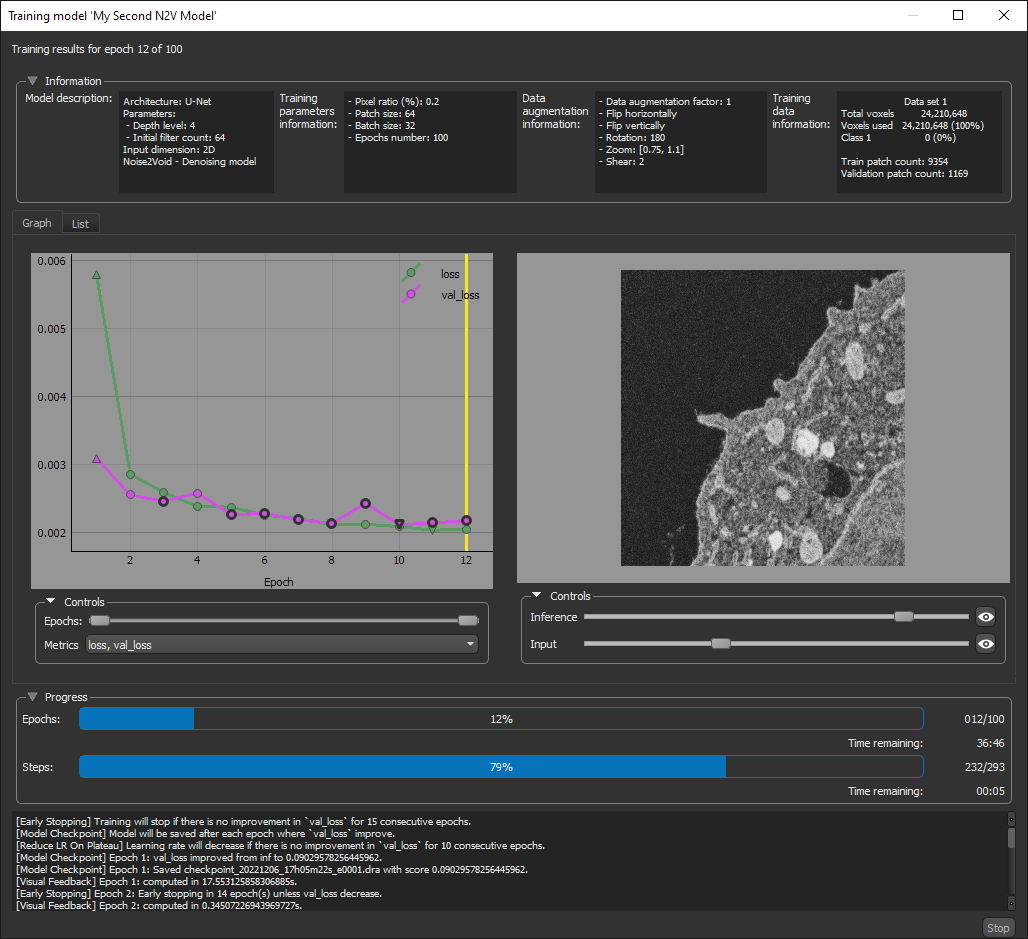
The dataset is validated and then automatically split into training and validation sets before training begins. You can monitor the progress of training in the Training Model dialog, as shown below.

During training, the quantities 'loss' and 'val_loss' should decrease. You should continue to train until 'val_loss' stops decreasing.
Note You can also click the List tab and then view the training metric values for each epoch.
- Wait for training the completed. You can also stop training at anytime, if required.
- Evaluate the results for the training session, recommended (see Evaluating Training Results).
- Preview the results of applying the trained model to the input dataset or to the source high-noise dataset to evaluate the model, recommended (see Previewing Training Results).
Note The measure of good denoising is how well detail is preserved while noise is removed.
- If the results are not satisfactory, you should consider doing one or more of the following and then retraining the model:
- Add an additional training set.
- Create a mask centered on problematic areas (see Creating Mask ROIs).
- Adjust the data augmentation settings (see Data Augmentation Settings).
- Adjust the training parameter settings (see Training Parameters).
- When the model is trained satisfactorily, click the Save button to save your model.
- Apply the model to the original dataset or to similar datasets (see Applying Noise2Void Models), as required.
 Previewing Training Results
You can preview the results of training on a selected dataset with the options in the Preview box, shown below.
Preview

- Display the required dataset.
- Zoom the view, if required (see Using the Manipulate Tools).
You should note that only the section of the dataset that is visible in the view will be processed.
- Select the dataset that you want the model to be applied to in the drop-down menu.
- Click the Apply button.
The preview appears in the selected view.
